
If you try to pip install sagemath, you will not get SageMath, you will only get confusion. In this blog, I will take you through my journey of getting SageMath installed and running my first commands. Only after I finished this did I realise that SageMath is effectively a full mathematics operating system that just so happens to expose Python (rather than the other way around). So the goal here is to not install SageMath into Python, but to run Python inside SageMath, and then convince PyCharm to use that Python!
Create a New GitHub Project
Create a new GitHub repo called ‘SageMath’.
Clone it to your local using GitHub Desktop.
Browse to the cloned folder in Windows Explorer and Git Bash there.
Create a new Python virtual environment. This is not where SageMath will live, but it will be obviously useful for your project tooling and dependencies:
$ python -m venv .venv
Activate the Python virtual environment, and immediately update pip:
$ source .venv/Scripts/activate(.venv) $ python -m pip install --upgrade pip
We now have a standard Python environment. It will not run SageMath, this is expected.
Enable Windows Subsystem for Linux (WSL)
SageMath runs pretty well on Linux. On Windows it, well…not so much. So let’s give Windows a Linux.
Run Windows PowerShell as Administrator. Inside PowerShell install WSL:
> wsl --install
Restart your machine.
Wait for Ubuntu to download and install.
Open Ubuntu from the Start Menu.
Corporate Machines
If you are on a corporate VPN and downloads hang at 0 B/s, this is because WSL uses a separate network stack and cannot automatically authenticate with your company proxy.
Create a file in your Windows folder (assuming you have Local Admin Rights):
C:\Users\<Your Name>\.wslconfig
Add:
[wsl2]
networkingMode=mirrored
dnsTunneling=true
autoProxy=true
Then in Windows PowerShell restart WSL with
wsl --shutdown
Reopen Ubuntu. Now the internet access should work inside WSL. Test by running
curl https://github.com
If you see HTML instead of a hang, you’re good.
Install SageMath
Open Ubuntu in Windows from the Start Menu
Install miniforge – following reference 1
:~# curl -L -O "https://github.com/conda-forge/miniforge/releases/latest/download/Miniforge3-$(uname)-$(uname -m).sh"
Now install Miniforge
bash Miniforge3-$(uname)-$(uname -m).sh
Now install Conda-forge
https://github.com/conda-forge/miniforge?tab=readme-ov-file
Close all terminals, and restart Ubuntu.
Type the following to ensure you now have Conda installed:
:~# conda --version
Install SageMath using the following Conda command:
:~# conda create -n sage sage python=3.12
Now activate SageMath
:~# conda activate sage(sage)_:~# sage -v
If a SageMath version prints, the it is installed correctly. You can also test
python -c "from sage.all import *; print(factor(2^31 - 1))"
If it returns a factorisation, then the math engine is working.
Connect PyCharm to SageMath
This was the tricky bit.
Open PyCharm into your cloned repo. Ensure you are operating inside your WSL virtual environment (check the bottom right hand corner). Now we must point PyCharm to the actual Sage Python interpreter inside the WSL!
Go to File > Settings > Python > Interpreter > Click Add Interpreter > On WSL…
Wait for the Linux Ubuntu distribution to spin up, then click Next.
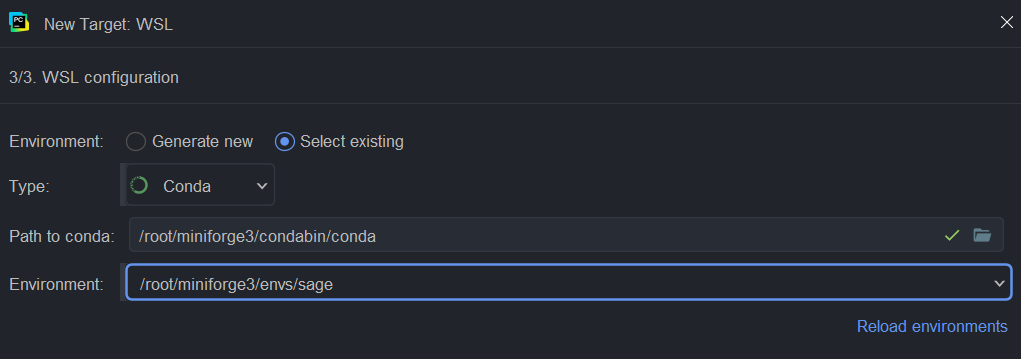
Click Select Existing, with Type Conda, and then browse to your Conda environment (which for me was on the Linux server \\wsl.localhost\Ubuntu, under \root\miniforge3\condabin\conda.
Once you select this path, the Environment drop down menu should automatically populate with the Sage Env:
Click Create.
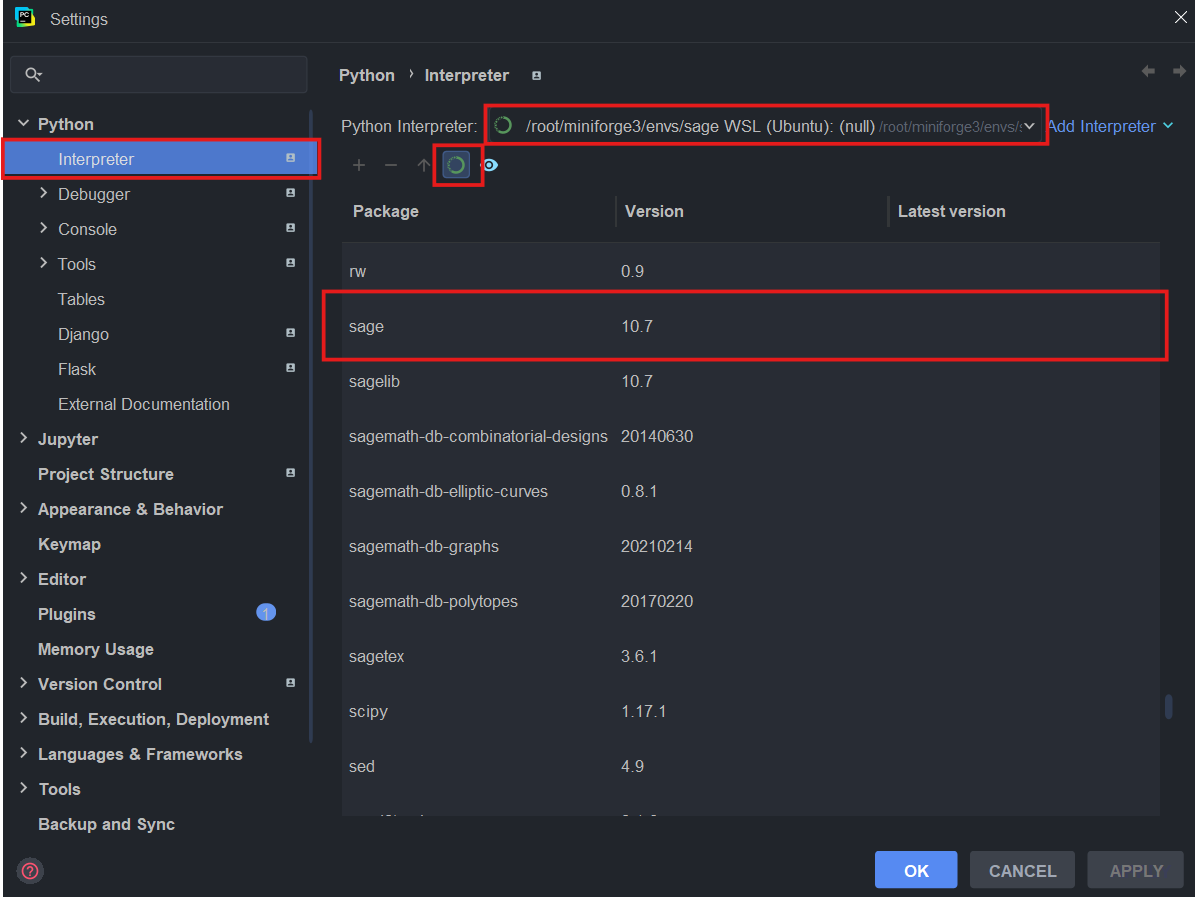
Click OK, and wait 4-5 minutes for PyCharm to index.
Verify the SageMath Installation Inside PyCharm
Now let’s create a simple project and a simple test case before committing a pushing back to the remote repo.
In PyCharm create a src folder and a tests folder and let’s add a new Python test case called test_polynomial_ring_1.py
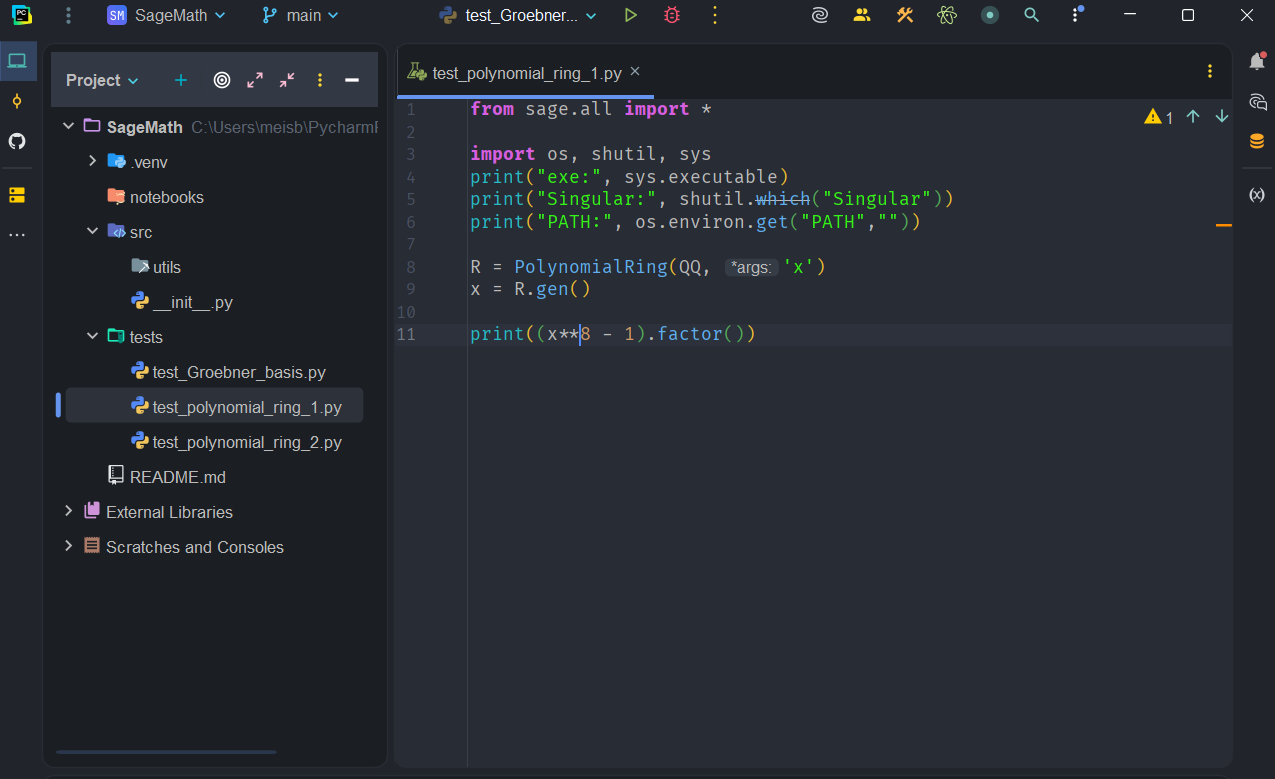
Enter the code:
from sage.all import *import os, shutil, sysprint("exe:", sys.executable)print("Singular:", shutil.which("Singular"))print("PATH:", os.environ.get("PATH",""))R = PolynomialRing(QQ, 'x')x = R.gen()print((x**8 - 1).factor())
and then run the test. The output should look like this:
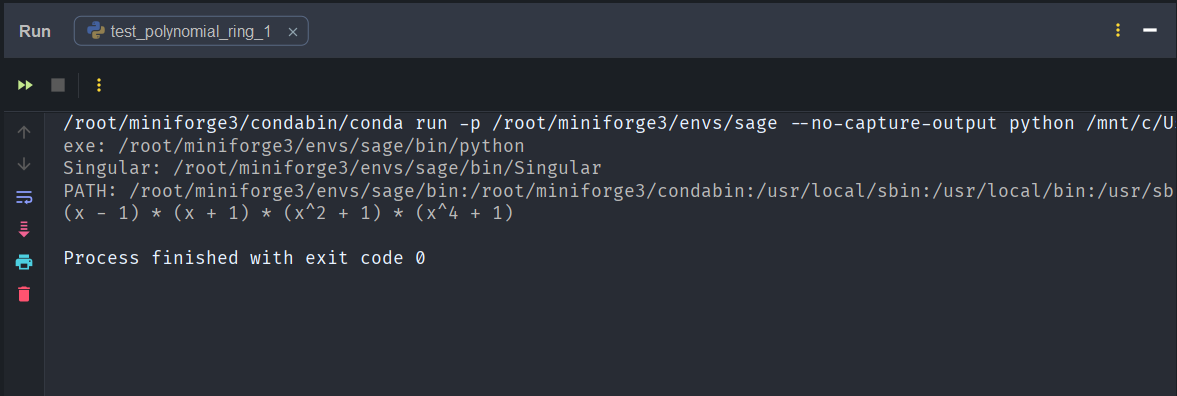
and we can see that it has correctly factored the polynomial.
Conclusion
In the next blog we will develop a wrapper around SageMath and attempt to symbolically produce the Black-Scholes PDE from a stochastic differential equation.
Troubleshooting
Could not find Executable ‘Singular’ not found on PATH.
When I first tried running this, after opening WSL and running
~#: conda activate sage(sage)~#: which conda/root/miniforge3/condabin/conda
This is the existing Conda environment that you have to point PyCharm to:
I had originally (and incorrectly) pointed PyCharm to this:
Open Settings -> Project -> Python Interpreter -> Add Interpreter -> On WSL… -> Existing -> Type: Python
And I found and selected my Sage python interpreter. It will be located here, which is wrong:
\\wsl.localhost/Ubuntu/root/miniforge3/envs/sage/bin/python3.12
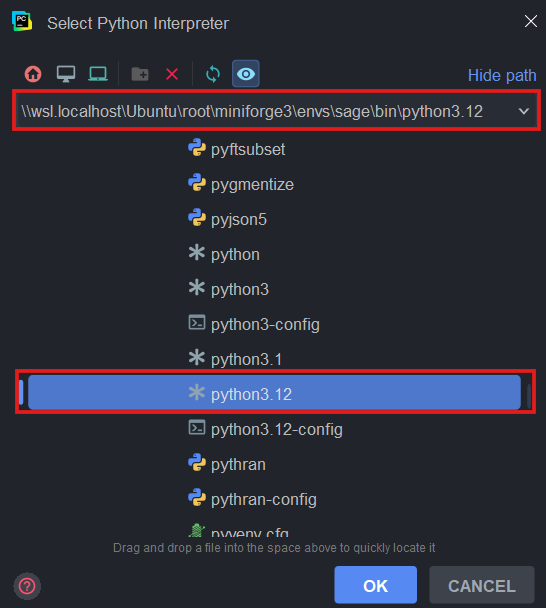
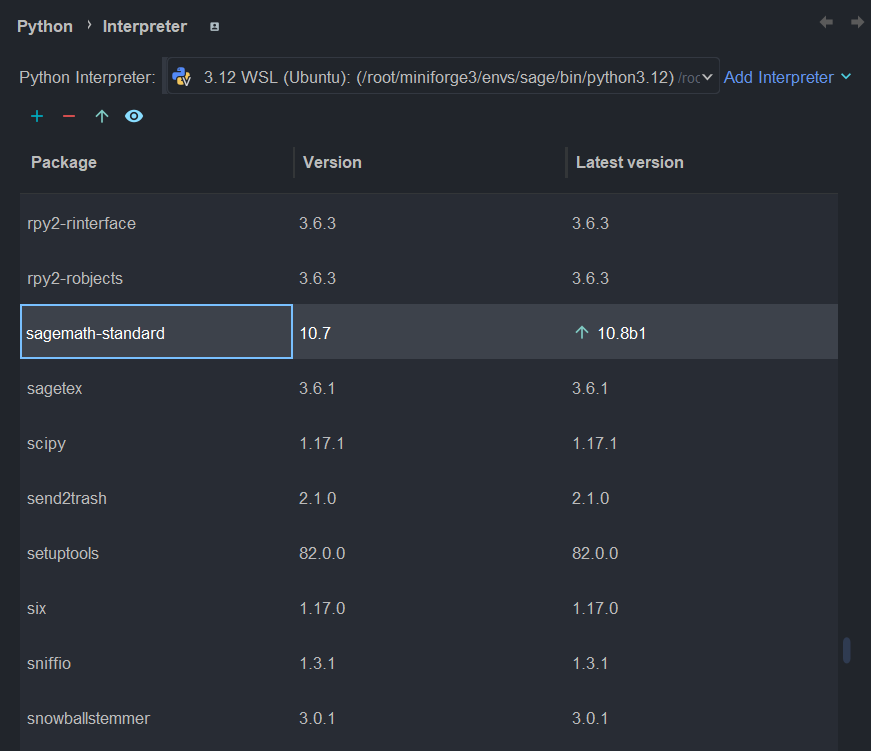
When it is set (incorrectly) the interpreter should look like this, but it won’t work.
 From First Principles